These are the commands on CentOS to check version:
# hostnamectl
# rpm --query centos-release
# cat /etc/centos-release
# cat /etc/os-release
# cat /etc/redhat-release
# cat /etc/system-release
Note:
# uname -a
and
# uname -r
will not give the OS version in detail.
[root@localhost slean]#
hostnamectl
Static hostname: localhost.localdomain
Icon name: computer
Chassis: n/a
Machine ID: e6450196561343d9976ba0d9c29c54c0
Boot ID: 0ddca677a08a44019c0f9b71fec2882a
Virtualization: vmware
Operating System:
CentOS Linux 7 (Core)
CPE OS Name: cpe:/o:centos:centos:7
Kernel: Linux 3.10.0-229.11.1.el7.x86_64
Architecture: x86_64
[root@localhost slean]#
Similar result from running # hostnamectl on Oracle VirtualBox
[root@localhost ~]# hostnamectl
Static hostname: localhost.localdomain
Icon name: computer-vm
Chassis: vm
Machine ID: ec0ea531f8894f84b9d5266ee38dfd8a
Boot ID: d1fa0335dab445fca139710b318734a8
Virtualization: oracle
Operating System: CentOS Linux 8 (Core)
CPE OS Name: cpe:/o:centos:centos:8
Kernel: Linux 4.18.0-193.14.2.el8_2.x86_64
Architecture: x86-64
[root@localhost ~]#
Another way to get the CentOS version is by
[slean@localhost ~]$ cat /etc/os-release
NAME="CentOS Linux"
VERSION="7 (Core)"
ID="centos"
ID_LIKE="rhel fedora"
VERSION_ID="7"
PRETTY_NAME="CentOS Linux 7 (Core)"
ANSI_COLOR="0;31"
CPE_NAME="cpe:/o:centos:centos:7"
HOME_URL="https://www.centos.org/"
BUG_REPORT_URL="https://bugs.centos.org/"
CENTOS_MANTISBT_PROJECT="CentOS-7"
CENTOS_MANTISBT_PROJECT_VERSION="7"
REDHAT_SUPPORT_PRODUCT="centos"
REDHAT_SUPPORT_PRODUCT_VERSION="7"
[slean@localhost ~]$
The next 3 commands give the same output result
[slean@localhost ~]$ cat /etc/centos-release
CentOS Linux release 7.1.1503 (Core)
[slean@localhost ~]$
[slean@localhost ~]$ cat /etc/redhat-release
CentOS Linux release 7.1.1503 (Core)
[slean@localhost ~]$
[slean@localhost ~]$ cat /etc/system-release
CentOS Linux release 7.1.1503 (Core)
[slean@localhost ~]$
Source: https://linuxconfig.org/how-to-check-centos-version

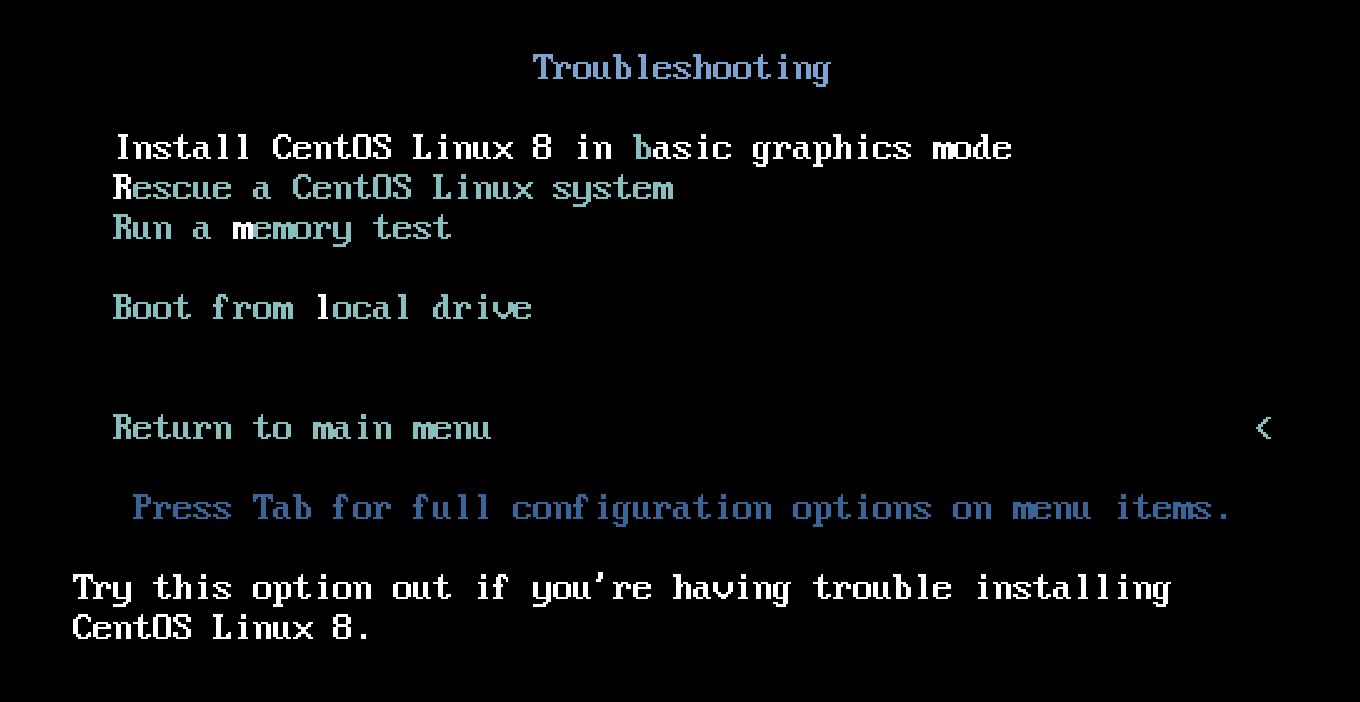


 At this point, your Linux installation is accessible through the /mnt/sysimage directory. User can type chroot /mnt/sysimage. At this point user have access to the system root file system and you can access all tools that is needed to repair access of the system.